
Why Your Profile Matters
Your Turrior profile is the first thing potential clients will see. It reflects your professional identity and plays a big role in getting matched with the right opportunities. A strong remote work profile setup increases your visibility and chances of success.Step 1: Log into Your Account
Go to my.turrior.com and log in with your email and password. Don’t have an account yet? You can sign up in just a few clicks.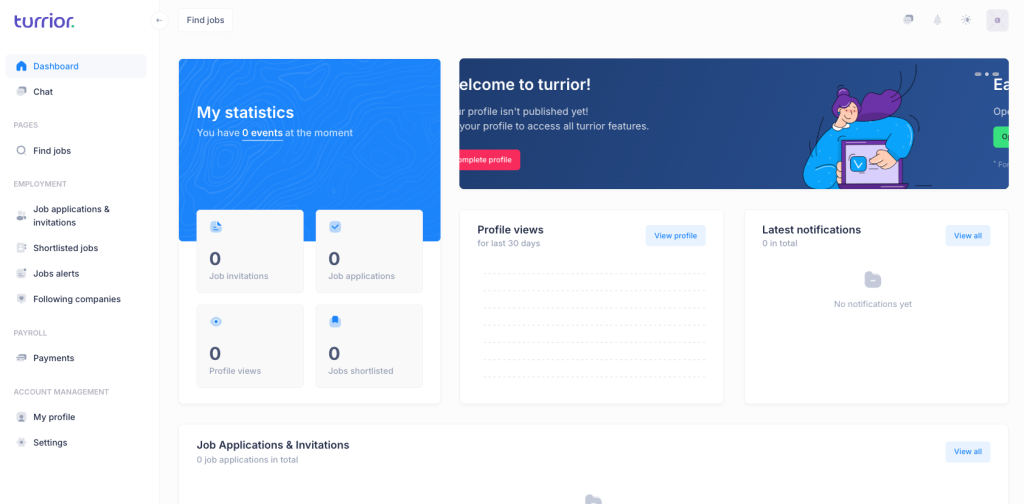
Step 2: Go to Your Profile
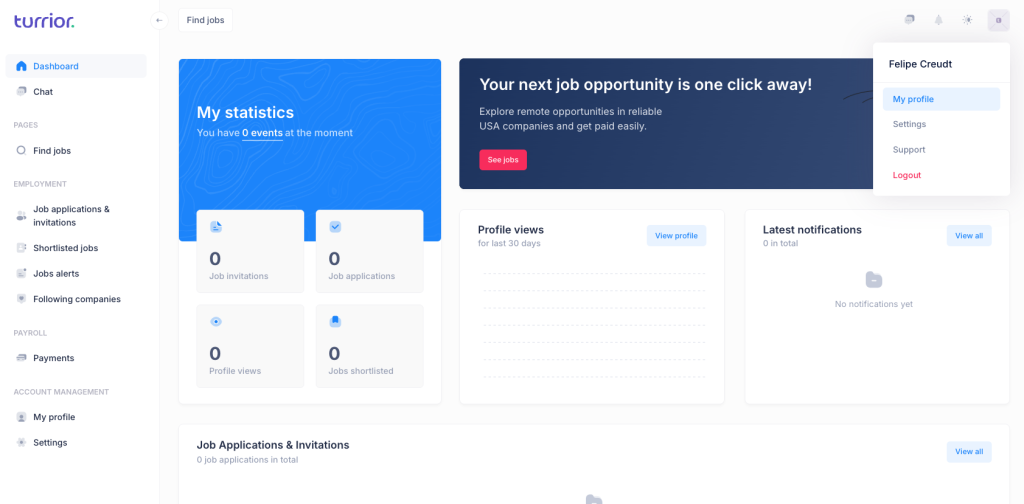
Click on the icon of the top right corner and select “My profile” in the menu to access your personal and professional details.
Step 3: Click “Edit”
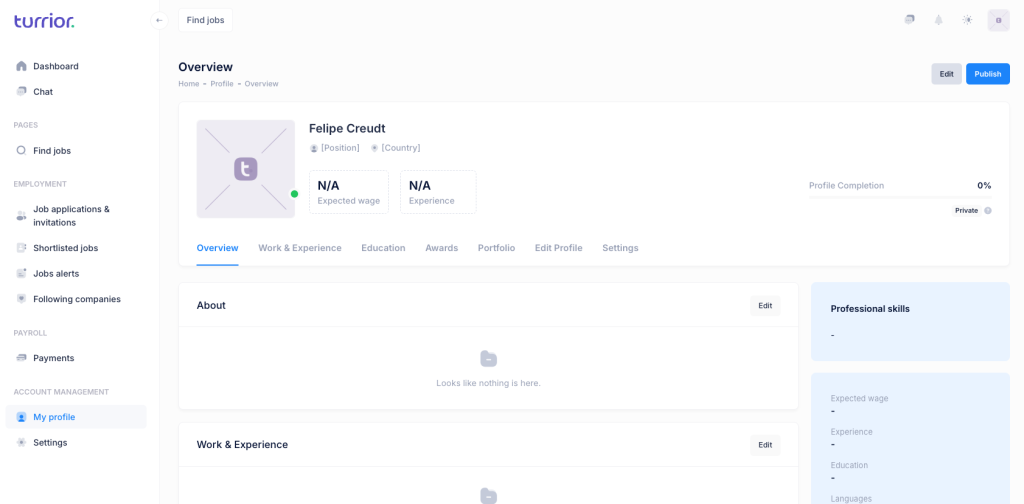
To start customizing, click on the “Edit” button at the top of the page.
Step 4: Upload a Professional Photo
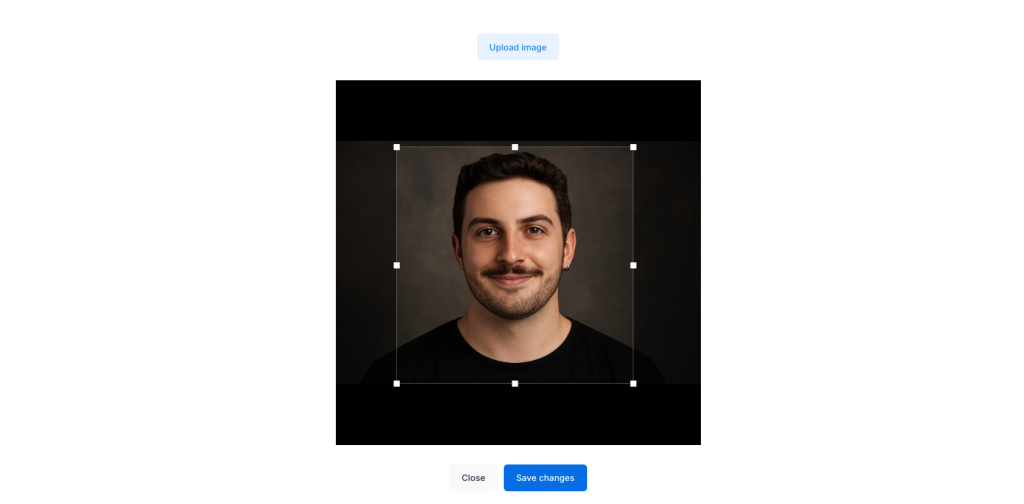
Choose a clean, high-quality image that reflects your professionalism. This is a crucial step in the remote work profile setup, as clients associate your photo with credibility and communication skills.
Best practices for your photo:
✅ Do:
– Use a clear headshot with a neutral or plain background.
– Smile gently and look at the camera.
– Dress in casual-professional attire (e.g., solid-colored shirt or blouse).
❌ Don’t:
– Use selfies, filters, or casual vacation pictures.
– Crop from group photos.
– Choose photos with poor lighting or cluttered backgrounds.
Step 5: Fill in Your Professional Summary
This is your quick pitch—summarize who you are, what you do, and what you’re great at. Include:
- A clear job title (e.g., “Customer Success Specialist”)
- A short bio with years of experience or standout achievements
- Key skills (e.g., CRMs, email handling, project management)
- Languages you speak fluently
Best practices for writing:
✅ Do:
– Keep it concise and structured in short paragraphs or bullets.
– Highlight skills relevant to remote work (communication, autonomy, tools).
– Mention specific platforms you use (e.g., Notion, HubSpot, Slack).
❌ Don’t:
– Write overly long or vague summaries.
– Switch between first-person (“I am”) and third-person (“Maria is”).
– Leave this section empty, this is one of the most viewed parts of your profile.
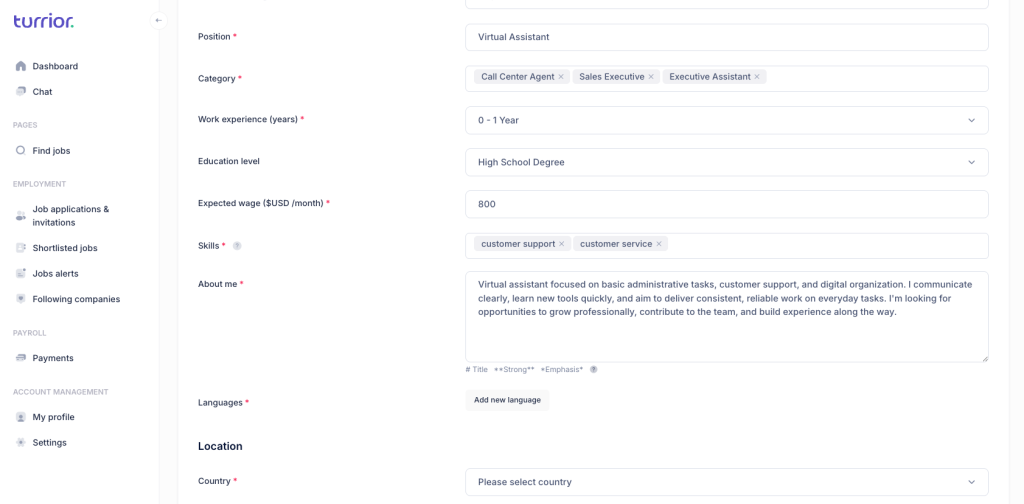
Step 6: Complete All Requested Fields
These may include:
- Languages you speak
- Country of residence
- Social media links
- Skills
These fields help the system and companies match you with relevant jobs in the remote work ecosystem.
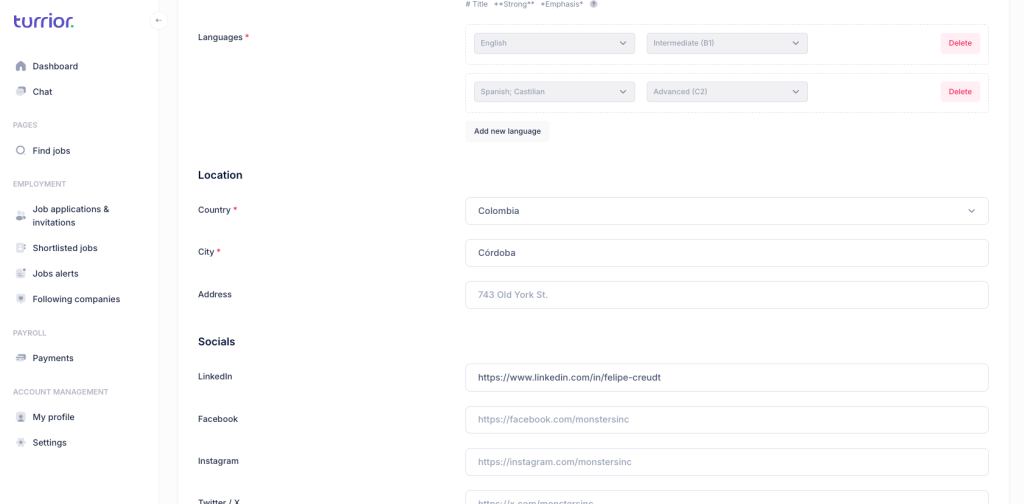
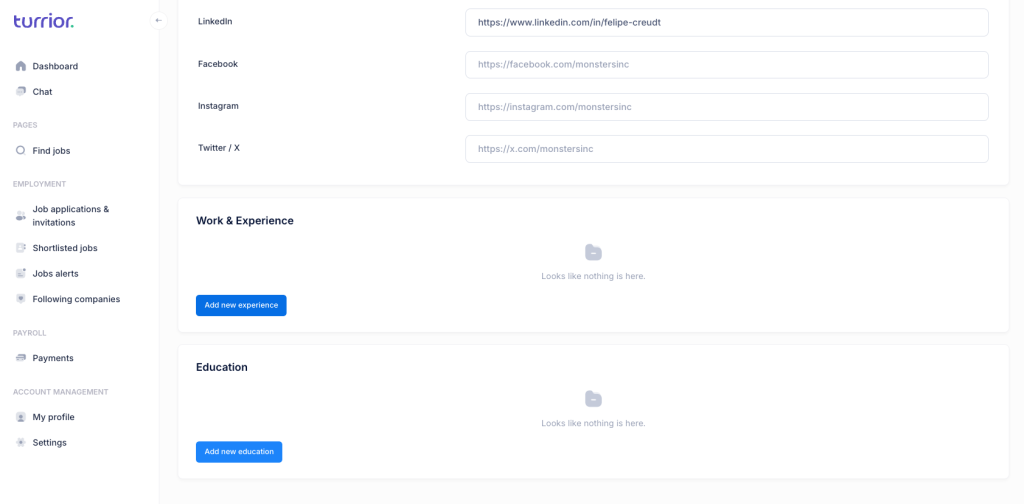
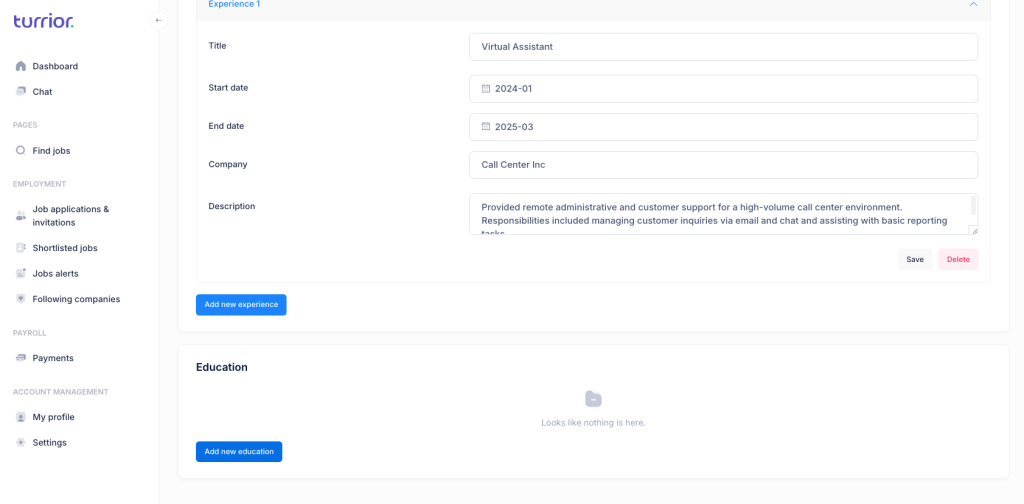
Step 7: Add Your Work Experience
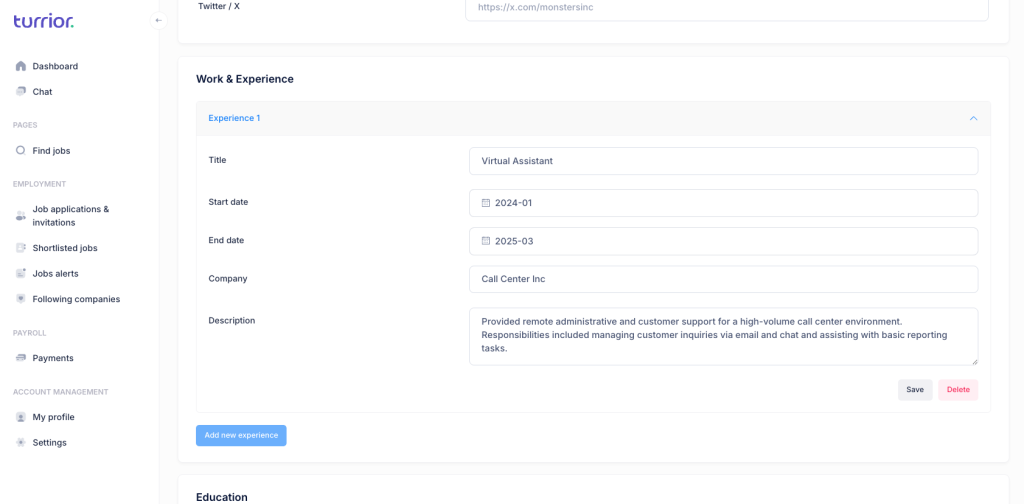
Click “Add New Experience” in the Work & Experience section and provide:
- Job title
- Company name
- Duration (start–end date)
- Key responsibilities and achievements
Tips for writing this section:
✅ Do:
– Use bullet points to describe responsibilities.
– Focus on remote-friendly skills (independence, digital tools, communication).
– Mention real outcomes when possible (e.g., “reduced response time by 40%”).
❌ Don’t:
– Leave job descriptions blank.
– Over-explain irrelevant jobs.
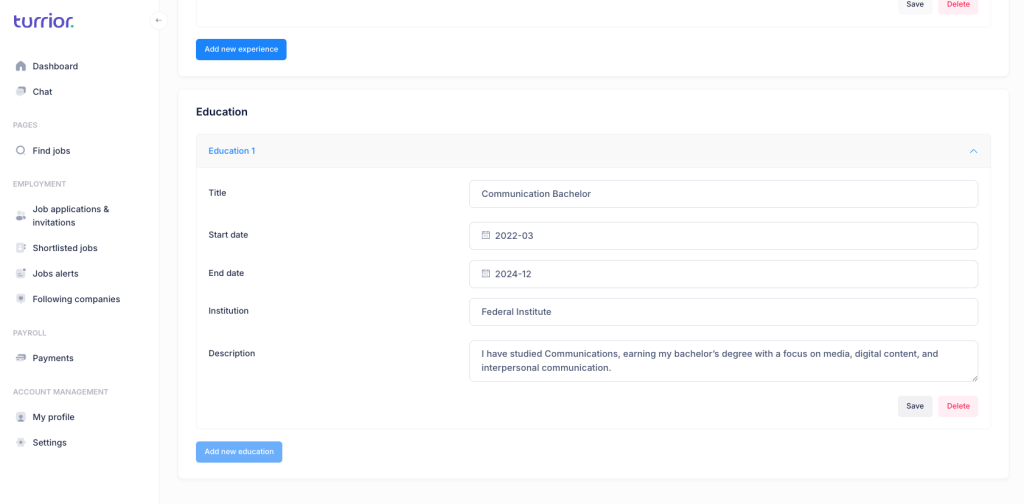
Step 8: Add Your Education Background
Include your degrees, certifications, and courses—especially those related to digital work or soft skills.
✅ Do:
– Mention relevant certifications (e.g., Google, HubSpot, Coursera).
– Add short-term trainings that align with remote roles.
❌ Don’t:
– Skip this section – even non-degree education is valuable.
– Add unrelated info that doesn’t reflect your professional path.
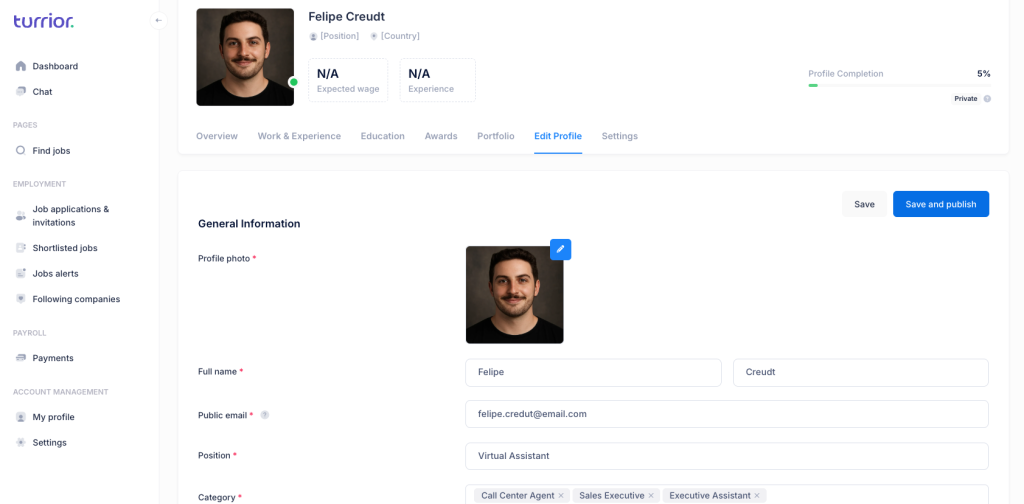
Step 9: Save and Publish
Once everything is filled out, scroll to the top of the page and click “Save and Publish”. Your profile is now live and visible to clients.
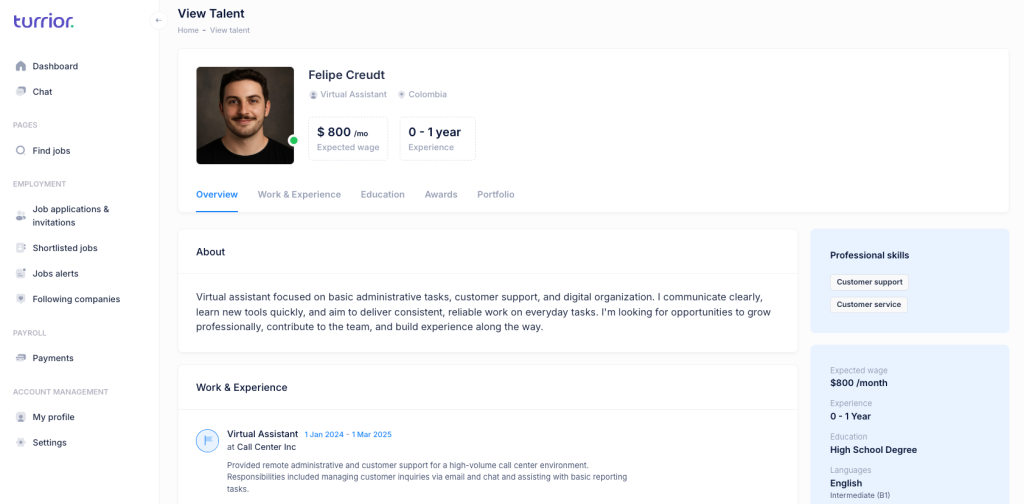
Step 10: Preview Your Public Profile
Click to view your public profile and double-check everything. Look out for typos, blank spaces, or formatting issues—this is what clients will see first.
Final Note: Keep It Updated
As you complete new projects or earn certifications, go back and update your profile. A consistent and fresh remote work profile setup increases your visibility and helps you land better opportunities.
Need Help?
Ready to try it out? Log in to your Turrior account and setup your profile today.