
When you’re hiring freelancers remotely, speed matters — but so does precision. One of the most effective ways to make sure you’re talking to the right candidates from the start is by using a qualification form.
Turrior makes it easy to collect key information up front, so you can screen applicants faster and with more confidence. In this step-by-step guide, we’ll walk you through how to create your own qualification form inside your Turrior account — and share tips for asking the right questions.
Turrior makes it easy to collect key information up front, so you can screen applicants faster and with more confidence. In this step-by-step guide, we’ll walk you through how to create your own qualification form inside your Turrior account — and share tips for asking the right questions.
Why Use a Qualification Form?
Posting a job without a qualification form is like inviting people to a meeting with no agenda. You might get lucky — but most likely, you’ll waste time on misaligned applications. By asking targeted questions early, you can:- Pre-qualify candidates before reading full profiles
- Get clear answers on availability, experience, and expectations
- Save hours of back-and-forth messages
Step-by-Step: Creating a Qualification Form on Turrior
Step 1 – Log in to your account
Go to my.turrior.com and log in with your company credentials.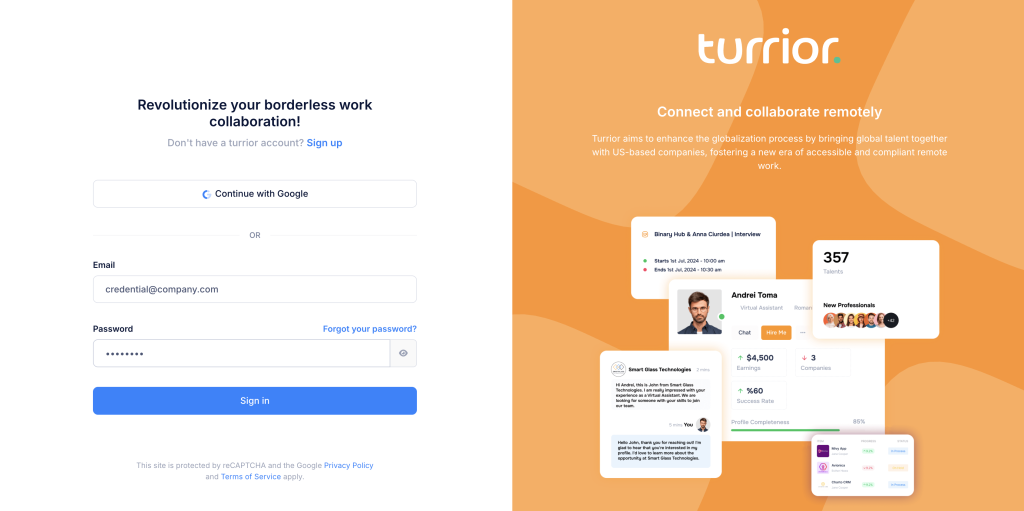
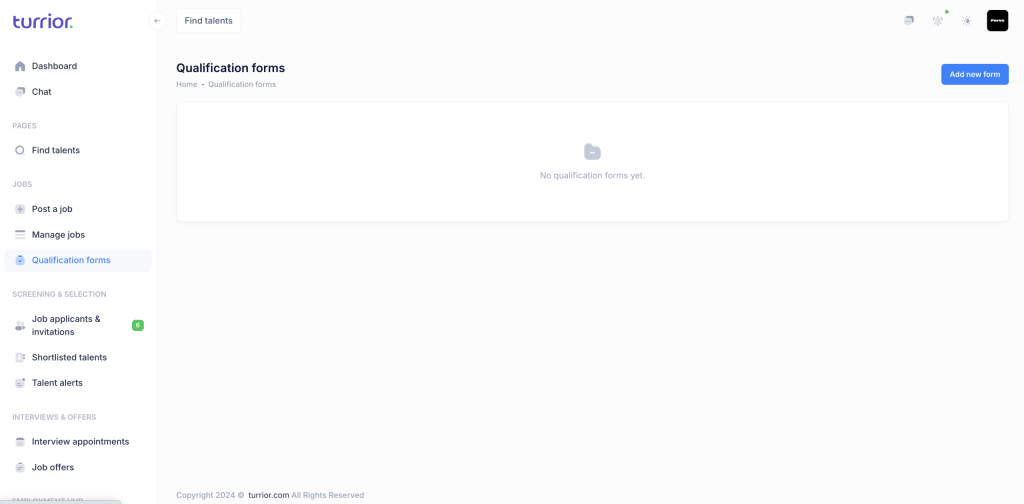
Step 2 – Access the Qualification Forms section
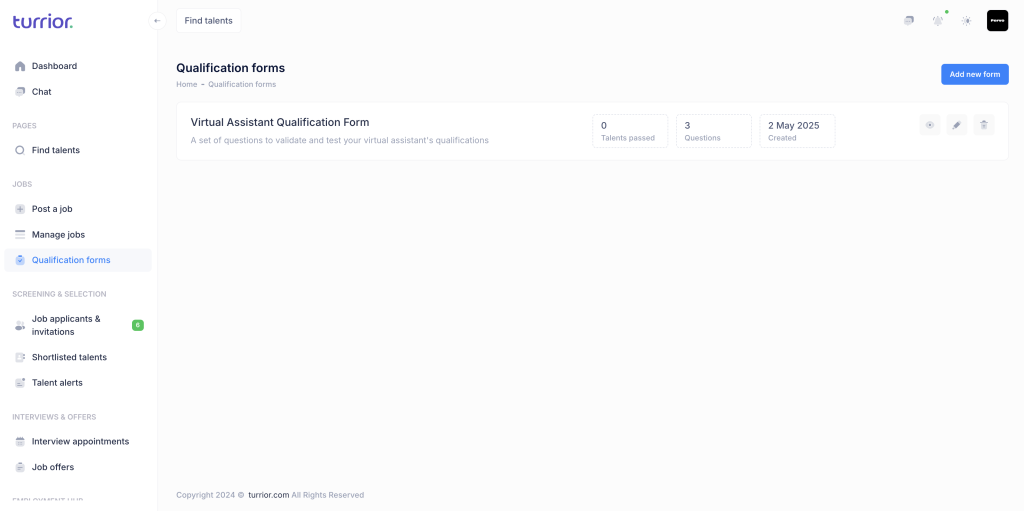
On the left menu, click on “Qualification Forms”. Then, click “Add New Form” at the top right corner of the screen.
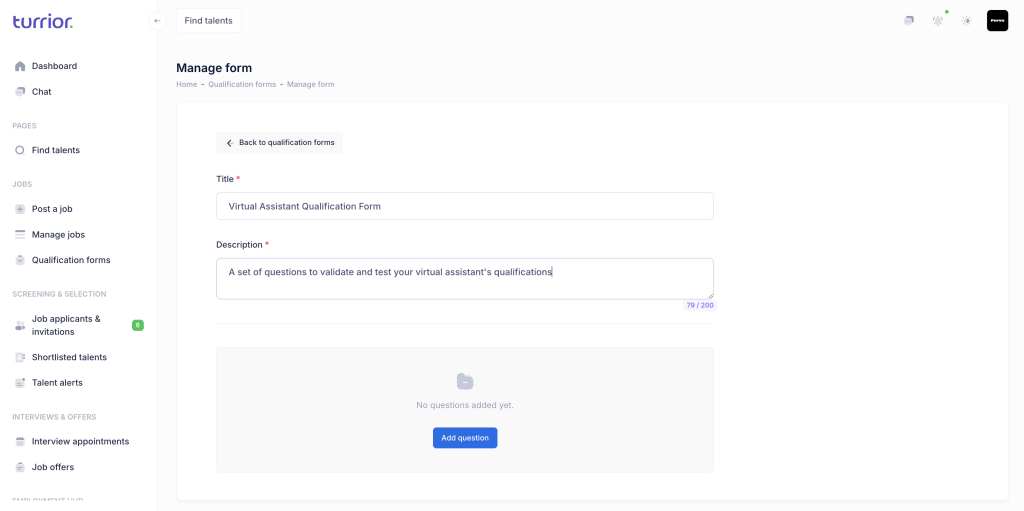
Step 3 – Give your form a title and a short description
Make the title clear and relevant to the job. For example:
- “Customer Support English Fluency Check”
- “Virtual Assistant Availability Form”
The description can include short instructions like:
- “Please complete all questions before applying.”
- “This will help us understand if the role is a good fit.”
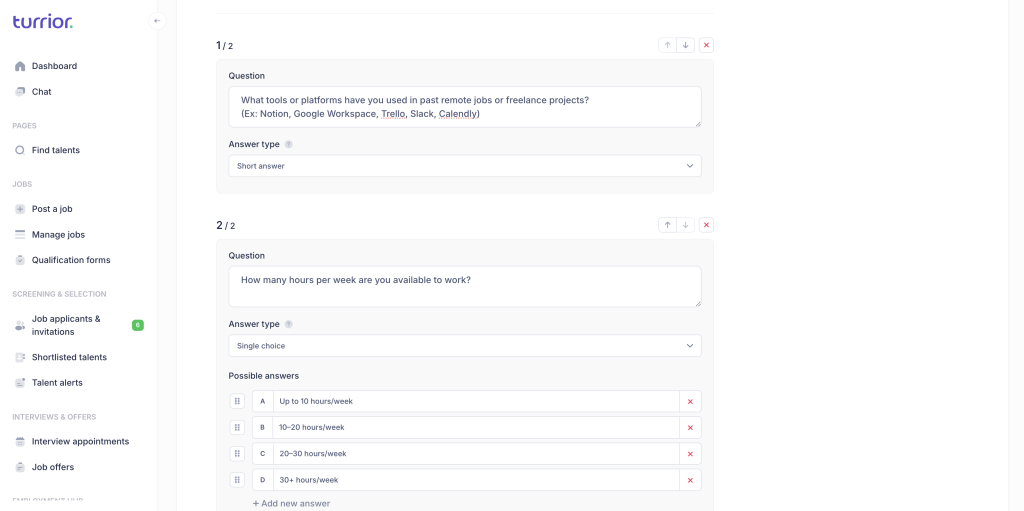
Step 4 – Start adding your questions
You can choose between three types of questions:
- Short answer: Best for open questions like “What tools have you used in similar projects?”
- Single choice: Good for asking about availability or experience level (e.g., “How many hours can you commit per week?”)
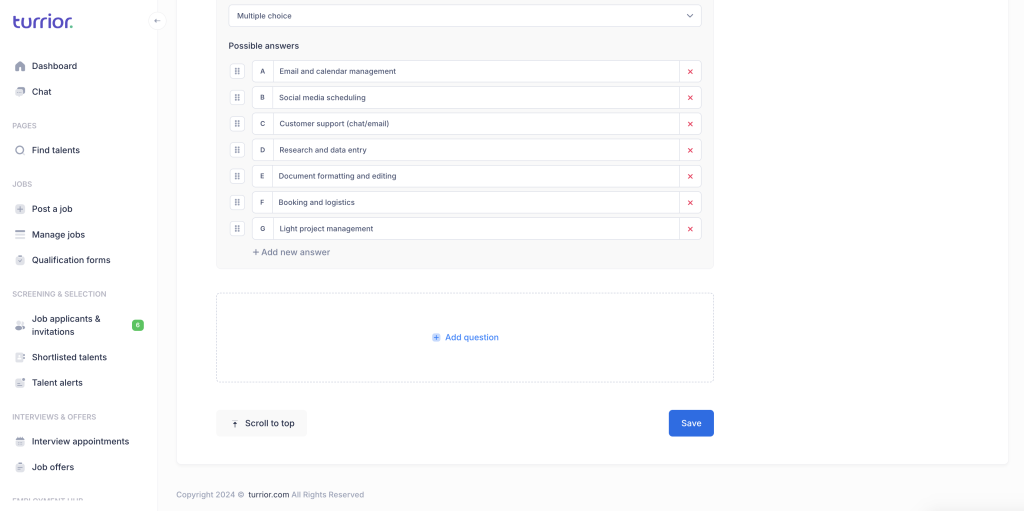
- Multiple choice: Use this when more than one option might apply (e.g., “What tools have you worked with?”)
Suggested questions you can include:
- What is your availability (hours/week)?
- What is your level of English communication?
- Do you have previous experience in this type of role?
- What time zone are you located in?
- Which of these tools have you worked with before?
Step 5 – Click “Save”
After adding your questions and reviewing everything, click “Save” in the bottom corner.
Your Form Is Ready
Once saved, your qualification form is available to use in your job post. When you’re creating a new job, just select the form you want to attach — and all applicants will be asked to complete it before applying.
It’s a small step that makes a big difference. You’ll spend less time sorting through applications, and more time talking to freelancers who are actually the right fit.